Thứ Ba, 11 tháng 1, 2011

DEXTECH | Tablet Attack!

  HP Slate vs Samsung Galaxy Tab vs Apple iPad vs RIM Blackberry Playbooks  

Just Recently, RIM has announced its new Tablet-BlackBerry Tablet. Now Apple iPad has serious competition in Tablet Market against Samsung Galaxy Tab, HP Slate and BlackBerry PlayBook.

 
That's just on the hardware side, though. Apple's still got three major advantages that opponents haven't made up much space on: iOS, the App Store, and a huge head start. It's going to take more than a pair of HD cameras to overcome that.


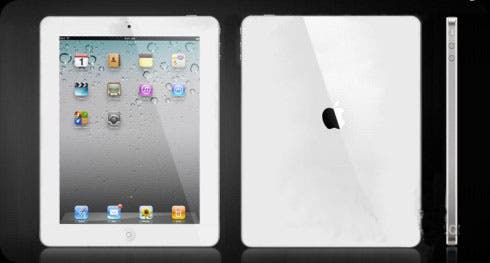
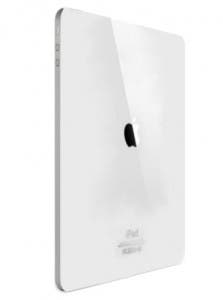
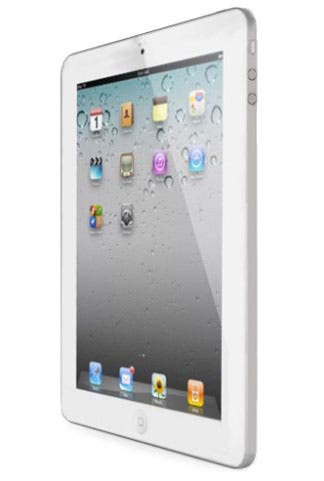
GOSSiP : Apple's iPad 2 (2nd Generation)

Apple telah menerima permintaan dari partnership dari asia (Asia Foxconn) untuk menghasilkan dan membekalkan iPad 2 (Generasi Ke-dua) dalam masa 100 hari, dengan rancangan untuk keluaran pertengahan 2011.

Pihak Foxconn telah mendapat notis dari Apple bagi rancangan untuk penghantaran iPad-2 pada Feb 2011, dengan penghantaran awal 400,000  600,000 unit, menurut DigiTimes. Sources expect the product to launch April 2011. Para peminat iPad mengharapkan pelancaran pada April 2011.

Ianya kemungkinan besar kerana generasi pertama iPad 1st generation dilancarkan pada bulan April tahun lalu. Apple's iPhones  model/versinya dikeluarkan setiap tahun sama seperti Apple's iPad. .
 
Spekulasi dari wartawan dan penganalisis bahawa iPad 2 mempunyai ciri-ciri sama seperti iPhone 4. Berikut adalah ciri-ciri diharapkan:
  • Skrin “retina” sama seperti  iPhone 4
  • Kamera depan (front-facing) dan dilengkapi dengan aplikasi panggilan video "FaceTime"
  • Menaik taraf sokongan "AirPlay streaming" (pendapat dari Steve Jobs)
Sementara itu, pada pendapat saya ada beberapa ciri yang diharapkan iaitu:
  • Butang untuk "locks screen" seperti dulu (Apple telah menukar fungsi butang tersebut  dari "lock screen" kepada "Mute-Mode"
  • Menyediakan/meningkatkan integrasi/sokongan dengan Apple TV, dimana membolehkan  menggunakan  media-streaming dari Apple TV kepada Apple iPad (sekarang anda boleh melakukan sebaliknya). Dimana pada pendapat saya jika anda dapat menggunakan "Movie-Streaming" pada iPad 2 secara mobile  memey netup !!!  

Apakah ciri-ciri yang anda harapkan pada keluaran iPad-2 dan seterusnya?

Thứ Hai, 10 tháng 1, 2011

Cara untuk menggunakan Android OS/Chromium OS pada PC anda | MiG from v1


Android sekarang menjadi salah satu OS yang paling popular untuk Smartphone. Jika anda bercadang untuk membeli Android HP, anda mungkin ingin mencuba dulu! Kali ini saya akan menunjukkan cara untuk menggunakan Android OS (Android x86 1.6 r2) dan app/utility Android pada PC anda (WinXP 32bit/Win732bit) dengan menggunakan Virtualbox (Oracle).

1. Download dan install Virtualbox

2. Download Google Android x86 1.6 OS
- terdapat beberapa version android, disini saya gunakan Androidx86 1.6 r2, kerana ia merupakan version yang paling stabil.

3. Buka Virtual Box dan klik New.

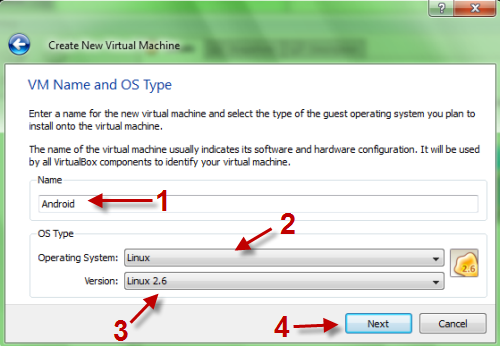
4. Create New Virtual Machine dan klik Next.

5. Nama VM anda, (contoh: Android-PC), kemudian pilih Linux sebagai sistem operasi, di dalam menu Version, pilih Linux 2.6. Klik Next.


6. Pada langkah berikutnya, anda perlu menetapkan saiz asas memori iaitu 256MB. Klik Next untuk ke langkah seterusnya.

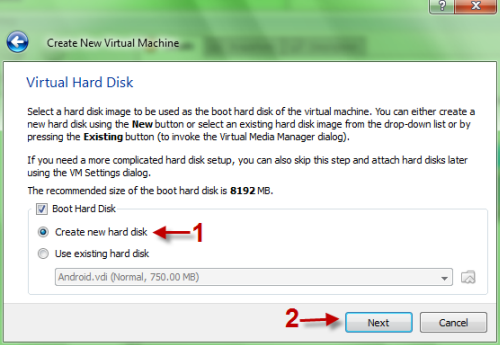
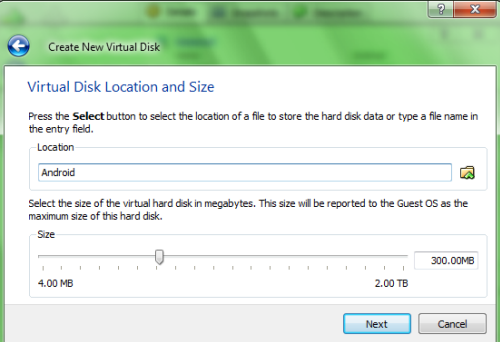
7. Pilih Create New Hard Disk dan klik Next. Pilih->Dynamically expanding storage->Klik Next->Namakan file VDI anda, setkan saiz (sekitar 300MB) ->Klik Next-> Finish-> Finish.


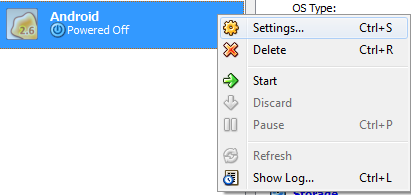
8. Sekarang kembali ke muka utama program Virtualbox, klik New Machine dan pilih Settings.


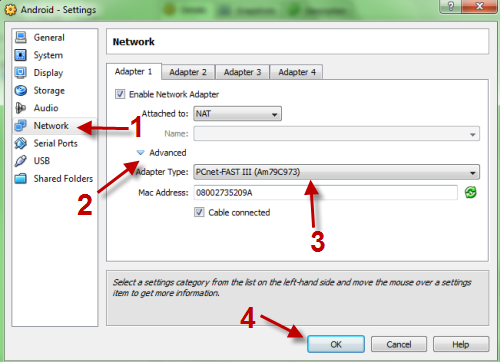
9. Dalam pop up baru, masuk ke pilihan Network, klik pada Advanced dan menetapkan jenis Adapter PCnet-FAST III. Klik OK untuk menyimpan tetapan. (Langkah ini sangat penting! Jika anda melewatkan langkah ini, mesin android anda mungkin tidak disambung ke internet, jadi kami tidak dapat men-download aplikasi dan surfing web)


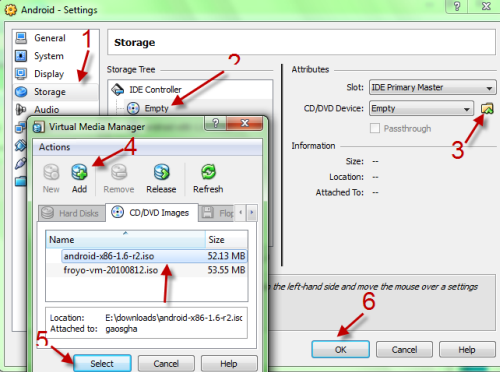
10. Pergi ke klik Storage option-> di klik Empty disk-> ikon Folder di sebelah kanan> pilih Add-> Point ke "android-x86-1.6-r2.iso" tadi-> Pilih-> Klik OK untuk menyimpan.


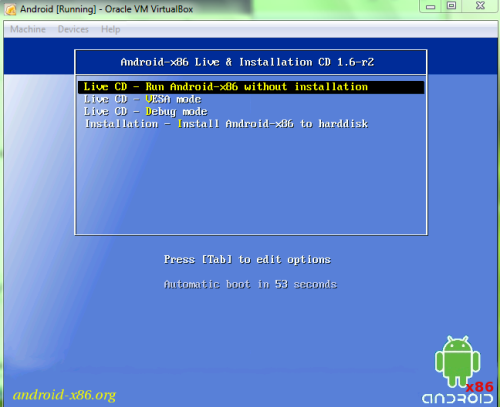
11. Klik Start untuk launch VM Android OS anda. Jika anda menghadapi amaran, tekan Enter. Pilih "Live CD – Run Android – x86 without installing."


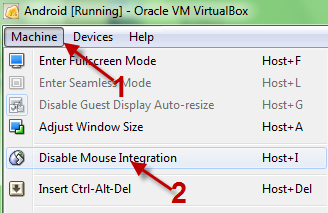
12. Ketika anda masuk ke Android OS, pergi ke Machine->Disable mouse intergration-> untuk menggunakan mouse didalam OS Android. (Bila anda menggunakan fungsi ini, anda tidak boleh menggunakan aplikasi lain Jika anda ingin berinteraksi dengan aplikasi,. Cukup tekan butang host "Ctrl kanan" untuk membawa kembali mouse biasa)


13. Pergi ke Setting Menu utama-> -> Aplikasi-> Pilih "Unknow Source->Klik OK untuk menyimpan semua tetapan


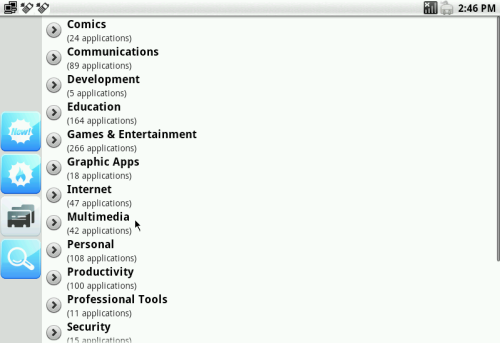
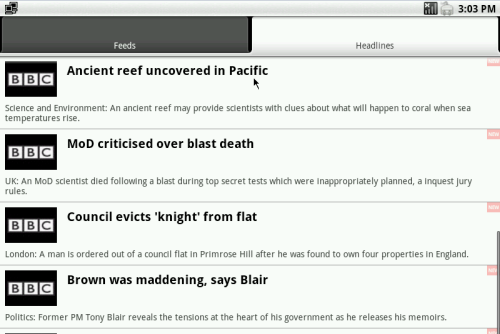
14. Sekarang, kembali ke menu utama (tekan ESC) dan pilih App Store. Kemudian anda boleh memilih perisian anda untuk mendownload. (Perisian dibagi mengikut kategori)


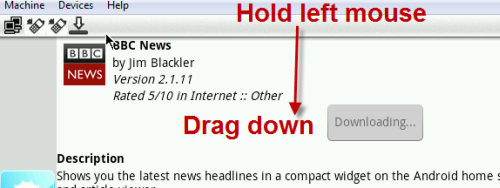
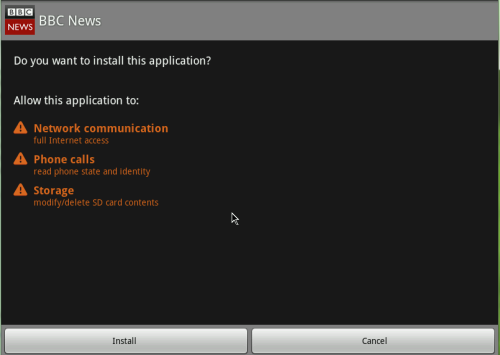
15. Apabila proses download selesai, 'Hold & Drag' ke bawah dari bahagian atas panel, pilih aplikasi dan kemudian anda boleh memasangnya tanpa masalah.


16. Selesai. Selamat mencuba...


*PS*
- Sesetengah aplikasi tidak berfungsi kerana mereka memerlukan peranti sebenar.

- App Store BUKAN Android Market, tidak semua aplikasi anda boleh download di sana.

- Android 2.2 masih belum stabil lagi tapi anda boleh mencubanya karana ia adalah versi terbaru.

- Jika anda mempunyai sebarang pertanyaan atau komen ;) silakan...


UTK CHROMIUM OS KLIK LINK DI BAWAH:

Maxis iPad Data Package Local Price

 Yes! iPad is coming to town and it's just the right time for daddy, mammy, girl friend and boy friend stop scratching your head what to buy for Christmas.

It was started when I simply browse to http://maxis.com.my/ipad and it come to the page below;


Maxis offers both postpaid and prepaid plans for iPad.

The postpaid plans for iPad;
RM70 for 3.5GB = RM20/GB
RM90 for 6.0GB = RM15/GB
RM200 for 15GB = RM13.33/GB

As for the prepaid plads for iPad;
RM8 for 500MB with validity 1 day
RM18 for 500MB with validity 30 days
RM28 for 1.0GB with validity 30 days.

There are also pricelist of iPad leaked from MacStudio:
16GB WiFi = RM1,549
32GB WiFi = RM1,849
64GB WiFi = RM2,149

16GB WiFi + 3G = RM1,999
32GB WiFi + 3G = RM2,299
64GB WiFi + 3G = RM2,599


Not too sure the packages of the iPad with maxis plans, probably gonna be a great deal since the iPad without contract is so affordable.
 
I did also tried out http://digi.com.my/ipad it come to an expired link and redirect to the main page. I guess DiGi is not planning to bring iPad in. Seem that DiGi is not interested on this and probably a great move whereby rumor the 2nd generation of iPad maybe coming soon.

UPDATE [06/12/2010]
iPad officially available in Malaysia and none of the Telco Service Provider will be carrying the iPad device for time being.

The iPad would only be available with Apple Malaysia and can be purchased from;


Apple Premium Resellers:
• Epicentre, Pavilion Kuala Lumpur +603 2141 6278/ 6378
• Epicentre, IOI Mall, Kuala Lumpur +603 8075 0870/0871
• Machines, Lot 10, Shopping Centre +603 2142 5009
• Machines, Suria KLCC, Kuala Lumpur +03 2171 2633
• Machines, Mid Valley Megamall, Kuala Lumpur +603 2282 3996
• Machines, Sunway Pyramid, Selangor +603 5633 2998
• Machines, The Gardens, +603 2287 6787/ 5787
• Machines, City Square (Johor), +607 227 2606
• Mac Studio, Bangsar Shopping Centre, +603 2282 1799
• Mac Studio, Berjaya Times Square, +603 2145 1799 / 2143 1799 / 2143 9799
• Mac Studio, Plaza Low Yat, Kuala Lumpur +603 2145 4799/9799.
• Switch, Plaza Gurney, Penang +604 229 5591
• Switch, The Mines Shopping Fair, Selangor +603 8948 9591.
• AVE, Kinlap, Brunei
• Avelectronics, The Mall, Brunei

Apple Shop, Harvey Norman:

• Bukit Tinggi, +603 3326 2631

• Mid Valley +603 2282 2860
• Ikano PowerCentre, +603 7718 5200/5223
• Sunway Pyramid, +603 5622 1300
• Queensbay Mall, +604 630 8210.


Source (DiscoveryWeek)

DXv2 GUiDE | Withdraw PayPal funds to your Malaysia Bank Account in 3 steps


DEX | Tutorial/Guide about Paypal. Just in 3 steps you (Malaysian users) can now withdraw their PayPal money directly to their Malaysian Bank Accounts through MEPS. (21 total banks in Malaysia is supported)


The transaction will take up to 2-3 days, and a fee of RM3 will be charge if your withdrawel is below RM400. If your withdrawal is above RM400, no fees will be charge. The default withdrawal limit is RM2000 a month. You can lift this limit once you link and confirm your credit card on PayPal.

Below is a step by step guide on how to withdraw funds to your Malaysia bank account.

1. Login to your PayPal account and click "Withdraw".

2. Once your inside the withdraw window, click “withdraw to your bank account" 


3. Specify your amount to withdraw and click "Continue"

Here are PayPal - MEPS Bank Routing Code - Malaysia
* Malaysia Bank Routing Code (also known as SWIFT Code)

Android OS for Touch & Chromium OS for Keyboard | MiG from v1

 Running Chromium OS In VirtualBox


5¢ DEX FONDS


5¢ DEX FONDS


How to Create Multiboot USB DVD ISO Images | XBOOT | MiG from v1


There are hundreds of Live CDs which are free of cost available on the Internet these days. Many of them are essential for a variety of purposes but one of the big issues is to carry a number of CD’s along, which is too much of a hassle.


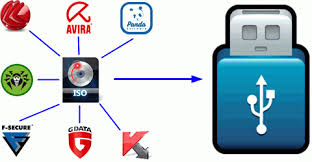
Nowadays everyone is aware of the benefits of ISO images. Many developers provide ISO images of their release for free download, especially in the antivirus and security niche but also in utility and Linux. But the problem that some users face is that there does not seem to be a way to combine multiple ISO images on an optical disk (like a CD or DVD) or USB device. That’s why Xboot has been created by its developer. This free application can combine multiple ISO images into one multiboot disk or USB device.


ISO images can be dragged and dropped into the main program interface. Each ISO is listed with its name, size, a category, file path and other information. The program will automatically calculate the combined file size and display it as the total size in the same program window. That’s helpful to keep below the maximum storage space of CDs, DVDs or USB sticks.

Another additional option, which is to calculate checksums is also provided which is useful to verify the integrity of an ISO image. ISO images can be added via the file menu as well which opens a file browser to select ISO images from connected storage devices. A click on Create ISO or Create USB creates the the multiboot ISO image or USB device. Any ISO image created this way needs to be burned to disk before it can be used.

Xboot is a helpful tool to add multiple ISO images to one multiboot ISO image or USB device where the creation process is easy to complete. It is compatible with 32-bit or 64-bit editions of Windows. The free software requires the Microsoft .NET Framework 4.0 on the computer system.